

Not long ago, editing PDFs on a mobile device felt like a frustrating compromise. Shuffling pages into the right order? Nearly impossible. Signing official contracts with just your finger? Awkward and unreliable. Merging separate files while you’re out and about? Forget it entirely.
That narrative has completely shifted.
Today’s phones and tablets pack enough processing power to handle serious document work on the go. Freelancers sign client invoices from café tables. Real estate agents merge disclosure packets mid-appointment. Students tidy up scanned lecture notes between classes. Small business owners tweak and finalize legal contracts without ever opening a laptop.
But the mobile PDF app market is incredibly hit-or-miss. Too many tools overpromise simple functionality and underdeliver badly. Some flood your screen with nonstop ads. Others lock basic, essential features — like rearranging PDF pages — behind pricey monthly subscriptions. A handful even upload your private files to cloud servers without clear upfront disclosure, creating quiet privacy risks.
This guide cuts through the clutter. We focused exclusively on active, reputable apps on the App Store and Google Play that nail three core, everyday PDF tasks: merging multiple files, adding secure digital signatures, and rearranging or reordering pages seamlessly.
Every app here was evaluated on real-world usability, mobile editing quality, signature accuracy, page organization tools, offline performance, privacy practices, and honest pricing structures. Some tools are built for heavy professional workflows, while others prioritize speed and simplicity for casual users. These are the only mobile PDF apps worth downloading in 2026.
Availability: iPhone, Android
Pricing: Free baseline tools; premium subscription unlocks advanced editing features
Adobe still dominates the PDF space for one straightforward reason: its mobile platform delivers consistent, dependable results where competitors falter.
It handles all your most critical PDF tasks with polished precision. You can merge separate PDF files, reorder pages with full control, add legally valid digital signatures, fill out complex forms, compress oversized documents, annotate key sections, and run OCR scans on scanned paper files. The experience feels especially refined on tablets, where dragging and dropping pages mirrors the smooth, intuitive workflow of desktop software. Every edit preserves original formatting, and exported files almost never break or glitch out mid-process.
Cross-device syncing is another major win. Your signatures, annotations, and saved edits carry seamlessly across phones, tablets, and desktops, eliminating redundant work. Reliability is Adobe’s greatest strength — a huge deal for professionals who can’t afford corrupted files or messy formatting errors.
The downside is unavoidable: Adobe’s subscription model is the most aggressive in this lineup. Many core power features, including full PDF merging and advanced editing tools, sit exclusively behind the Acrobat Premium paywall. The free version feels noticeably limited for anyone tackling regular document work.
Industry-leading PDF merging and file consolidation
Precise, reliable page reordering and organization
Robust, legally compliant e-signature functionality
Smooth cross-device cloud syncing
Universal PDF compatibility with zero formatting errors
Premium subscription pricing is relatively costly
Free version restricts many useful core features
Key tools are buried within dense menu layers
Professional users who work with PDFs daily and prioritize unwavering reliability over low costs.
Availability: iPhone, Android
Pricing: Free limited usage; premium subscription unlocks unlimited access
Smallpdf succeeds because it rejects bloated, overcomplicated design. It strips PDF work down to fast, intuitive actions anyone can master instantly.
Its clean, modern mobile interface centers on the exact tasks most users need daily: merging PDFs, splitting large files, rearranging page order, compressing bulky documents, signing contracts, and converting files between common formats. The drag-and-drop page editor stands out most. Even total beginners can reorganize multi-page documents in seconds, no tutorial or menu digging required.
The biggest limitation comes with free-tier usage. Casual users will get by fine, but anyone processing multiple documents daily will quickly hit strict daily task limits.
Even with that restriction, Smallpdf feels far less intimidating than Adobe’s enterprise-grade toolkit. It’s the perfect middle ground for students, freelancers, and office workers who want polished results without a steep learning curve.
Extremely approachable for first-time users
Lightning-fast page rearrangement and file merging
Sleek, clutter-free mobile interface
Effective, high-quality document compression
Simple, streamlined digital signature workflow
Free plan enforces strict daily usage caps
Power users need a premium subscription for unlimited access
Cloud-based processing may deter privacy-focused users
Anyone who wants clean, fast PDF tools without Adobe’s overwhelming complexity and feature bloat.
Availability:iphone, Android
Pricing: Free basic version; premium subscription required for advanced enterprise tools
Foxit has quietly cemented its place as Adobe’s most credible professional rival. It delivers enterprise-level PDF power without the excessive bulk of Acrobat.
Speed is its defining strength. Large, text-heavy PDFs load almost instantly, and page rearrangement, merging, and editing stays smooth even with multi-hundred-page documents. Foxit covers all core needs: file merging, secure document signing, detailed annotations, fillable form processing, password protection, and cross-device cloud syncing.
It truly shines for business-grade workflows. Professionals handling formal contracts, lengthy multi-file reports, interactive forms, and team-shared annotated documents will appreciate its stable, precise performance. Industry testing consistently highlights Foxit’s lightweight efficiency and superior form-handling capabilities on mobile devices.
The tradeoff is its interface. Designed for enterprise functionality first, it feels technical and utilitarian at times, which can overwhelm casual users who only need quick edits.
Blazing-fast performance even on large PDFs
Industry-leading interactive form handling
Precise, robust page management tools
Reliable team collaboration and annotation support
Far less bloated and sluggish than Adobe Acrobat
Advanced professional features require a paid upgrade
Technical interface lacks casual user friendliness
Overpowered and overly complex for simple everyday tasks
Business professionals managing complex, high-volume PDF workflows and team document collaboration.
Availability: iPhone, Android
Pricing: 100% free
PDFgear has rapidly grown in popularity for one game-changing reason: it gives away features most competitors lock behind expensive subscriptions.
Users get full access to PDF merging, file splitting, page rearrangement, text editing, document signing, file compression, and OCR text recognition — no monthly fees, no paywalls, no mandatory upgrades. Community user feedback consistently praises its lightweight build, clean mobile layout, and total absence of intrusive pop-up ads.
Its page organization tools feel responsive and smooth on mobile, and it avoids the clunky, overstuffed “all-in-one suite” design that plagues many free PDF apps. For casual and mid-tier users, it delivers unbelievable value.
That said, it’s still a newer platform compared to industry giants like Adobe and Foxit. Advanced enterprise collaboration tools and ultra-specialized editing workflows aren’t as polished or robust.
Extremely generous free feature set with zero hidden paywalls
Lightweight, fast, and responsive mobile performance
Accurate, intuitive page management and file merging
Virtually ad-free user experience
Unmatched overall value for free mobile PDF software
Smaller ecosystem and less brand longevity than top competitors
Limited advanced team collaboration functionality
Still building long-term reliability and support reputation
Users who want powerful, full-featured PDF tools without recurring subscription costs.
Availability: iPhone, Android
Pricing: Robust free version; optional premium upgrade for extras
Xodo built its reputation on top-tier annotation and teamwork tools, but its core page organization and document editing features hold their own against far more expensive apps.
It excels at rearranging PDF pages, marking up documents, applying clean digital signatures, syncing files across devices, integrating with major cloud storage platforms, and hosting shared team comments. It strikes a perfect middle ground in the app market.
It never feels as overly complex as Adobe’s enterprise tools, yet it’s far more capable and flexible than ultra-simplified beginner apps like Smallpdf. It’s balanced, functional, and built for collaborative work.
The only real downside is limited advanced editing power. For heavy professional PDF manipulation, it still falls short of Acrobat or Foxit’s premium capabilities. Its interface can also feel slightly cluttered during intensive multi-tasking sessions.
Industry-best annotation and document markup tools
Seamless cross-device cloud syncing
Simple, effective page rearrangement controls
Impressive functionality entirely for free
Optimized for group workflows and team collaboration
Advanced editing capabilities lag behind premium enterprise tools
Certain premium features sit behind a paid upgrade
Interface can feel cluttered during complex workflows
Students, remote workers, and collaborative teams that regularly share and edit PDFs together.
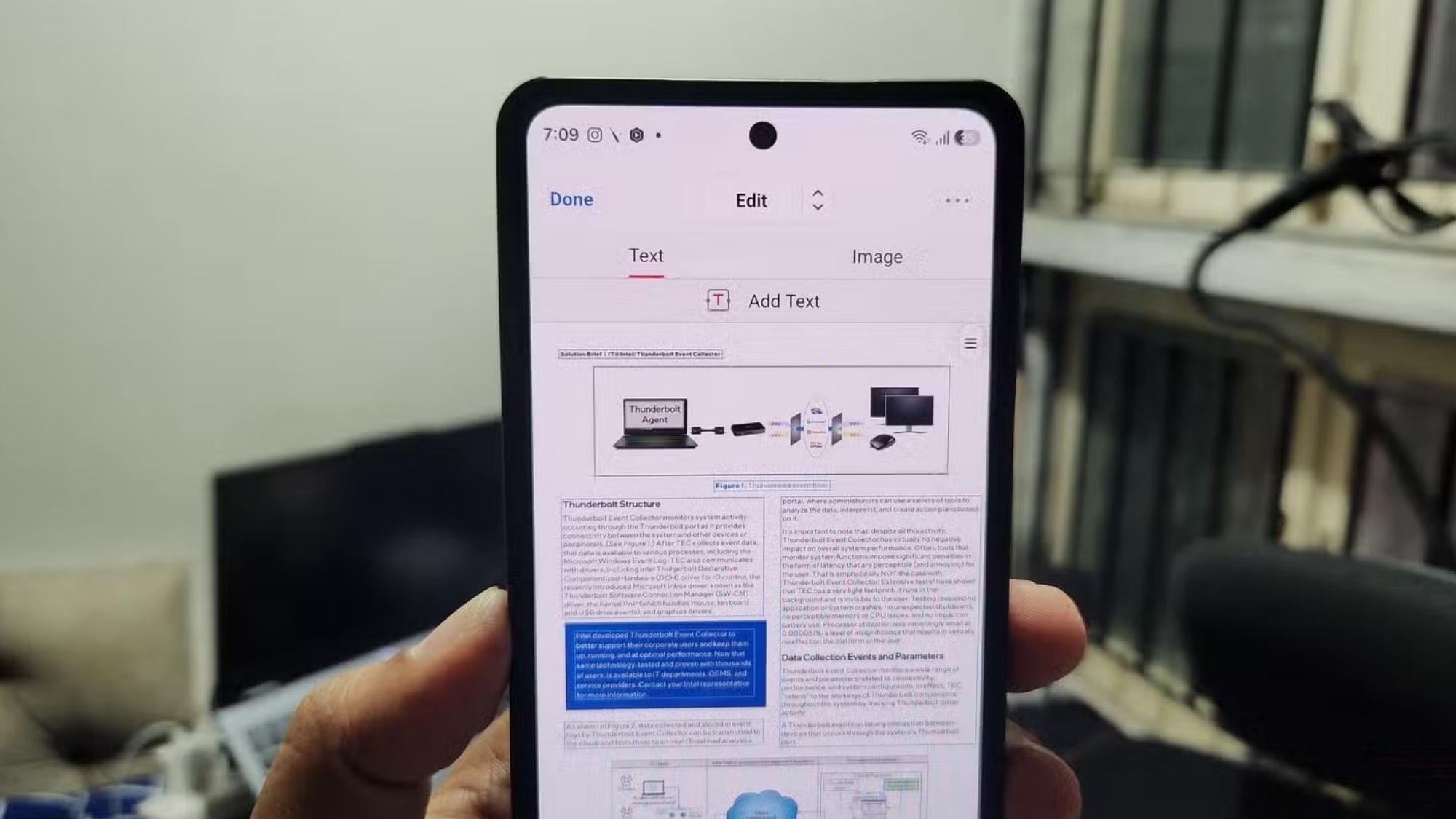
Adobe Acrobat Reader remains 2026’s best all-around mobile PDF app for most users. Its unbeatable combination of reliable file merging, precise page rearrangement, trustworthy signature support, and universal cross-platform compatibility still sets the industry standard for professional mobile document work.
That said, it’s not the right fit for every workflow or budget. Different users benefit most from different tools tailored to their needs.
Best Overall Mobile PDF App: Adobe Acrobat Reader
Best Beginner-Friendly PDF Tool: Smallpdf
Best Professional Adobe Alternative: Foxit PDF Editor
Best Free No-Subscription Value: PDFgear
Best Collaborative Workflow Features: Xodo PDF Reader & Editor
Most people assume all PDF editors process files locally on their phone. This is a dangerous misconception.
Many popular mobile PDF apps push signature processing, file conversions, OCR scans, and PDF merges through external cloud servers. For casual schoolwork or trivial personal documents, this rarely causes issues. But for sensitive material — legal contracts, financial records, medical paperwork, and official business documents — this hidden cloud processing creates real privacy vulnerabilities.
Users also face widespread subscription fatigue. Where basic PDF tools once came with one-time purchase pricing, most modern platforms lock core functionality behind recurring monthly fees. This shift is why free, transparent tools like PDFgear have exploded in popularity among users tired of expensive, restrictive software ecosystems.
The good news? Mobile PDF editing has fully matured in 2026. You can now merge files, reorder pages, sign official contracts, compress large documents, and share finalized, professional-grade PDFs entirely from your phone — no desktop computer required.